Container Information
This function allows users to manage Containers in M-SHIP.
List Container Information
To list the Container Information, navigate to [System Codes] → Container Information from the left navigational bar.
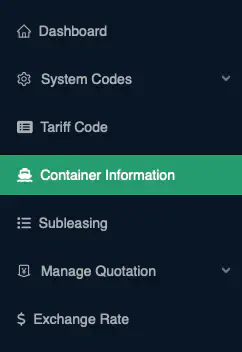
Business Logic: By default, the system will retrieve all
activeContainers.
Add Container Information
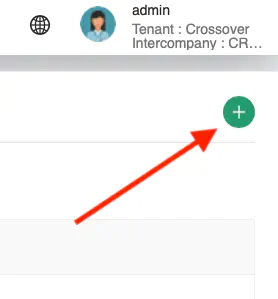
Click on the + icon at the top right of the Content Page to add a new Container Information
A pop-up containing all the data fields for Container Information input will be displayed.
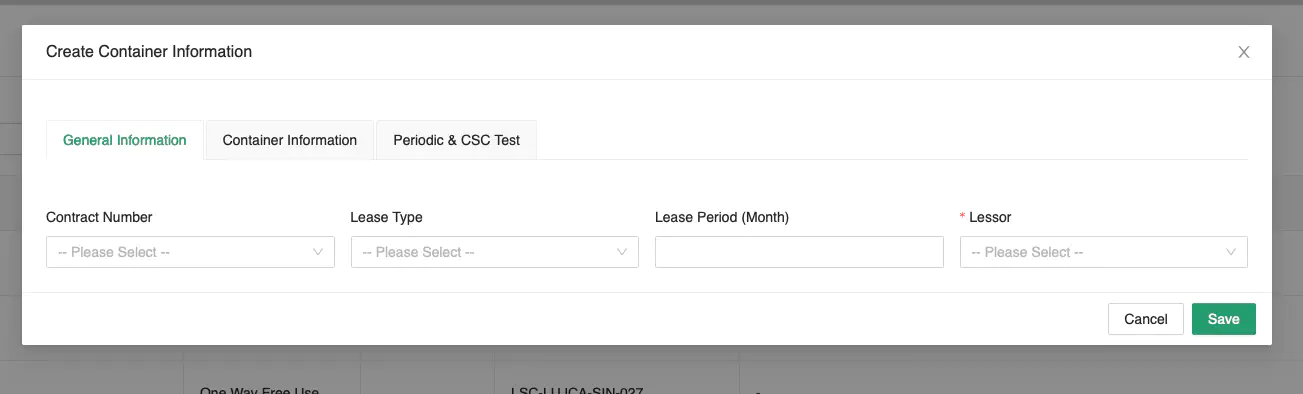
Key in the information carefully. Ensure that all mandatory fields are entered.
Click [Save] to create the new Container Information.
Business Logic:
Container Numbermust be provided
Container Numbermust strictly follow the format: AAAANNNNNNN
Container Number(s)must not already exist in the system.If
Contract Numberis provided, the total number of Container(s) listed in this form and the number of existing Containers tagged under the selected Contract must not exceed theTotal Number of Containersfor the selected Contract.
Edit Container Information
Click [Actions] → Edit to edit the selected record.
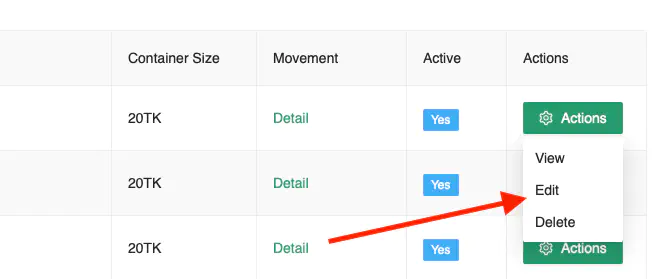
Once you have amended the entry, click [Update] to save the record.
The same Business Logic from Add Container Information applies.
Delete Container Information
Click [Actions] → Delete to delete the selected record.
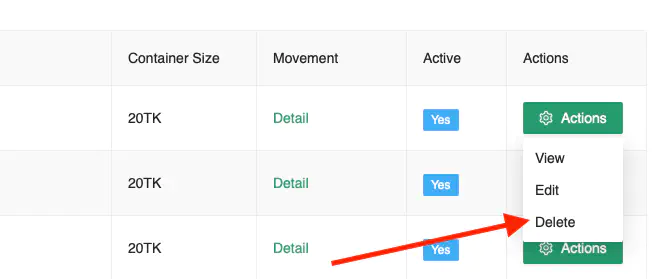
A confirmation prompt will appear. Click [Ok] to proceed with the deletion.
Business Logic: The Container Information must not be in use in any active transactions in the system. i.e. This Container must not be used in any active Jobs.