Manage Jobs
This function allows users to manage Jobs in M-SHIP.
List Jobs
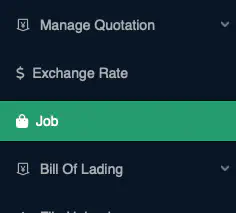
To list the Jobs, navigate to [System Codes] → Job from the left navigational bar.
Business Logic: By default, the system will retrieve all
activeJobs.
Add Job
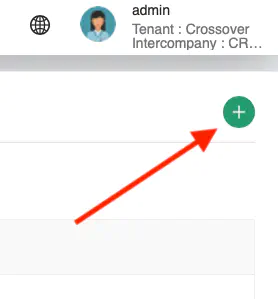
Click on the + icon at the top right of the Content Page to add a new Job
A pop-up containing all the data fields for Job input will be displayed.
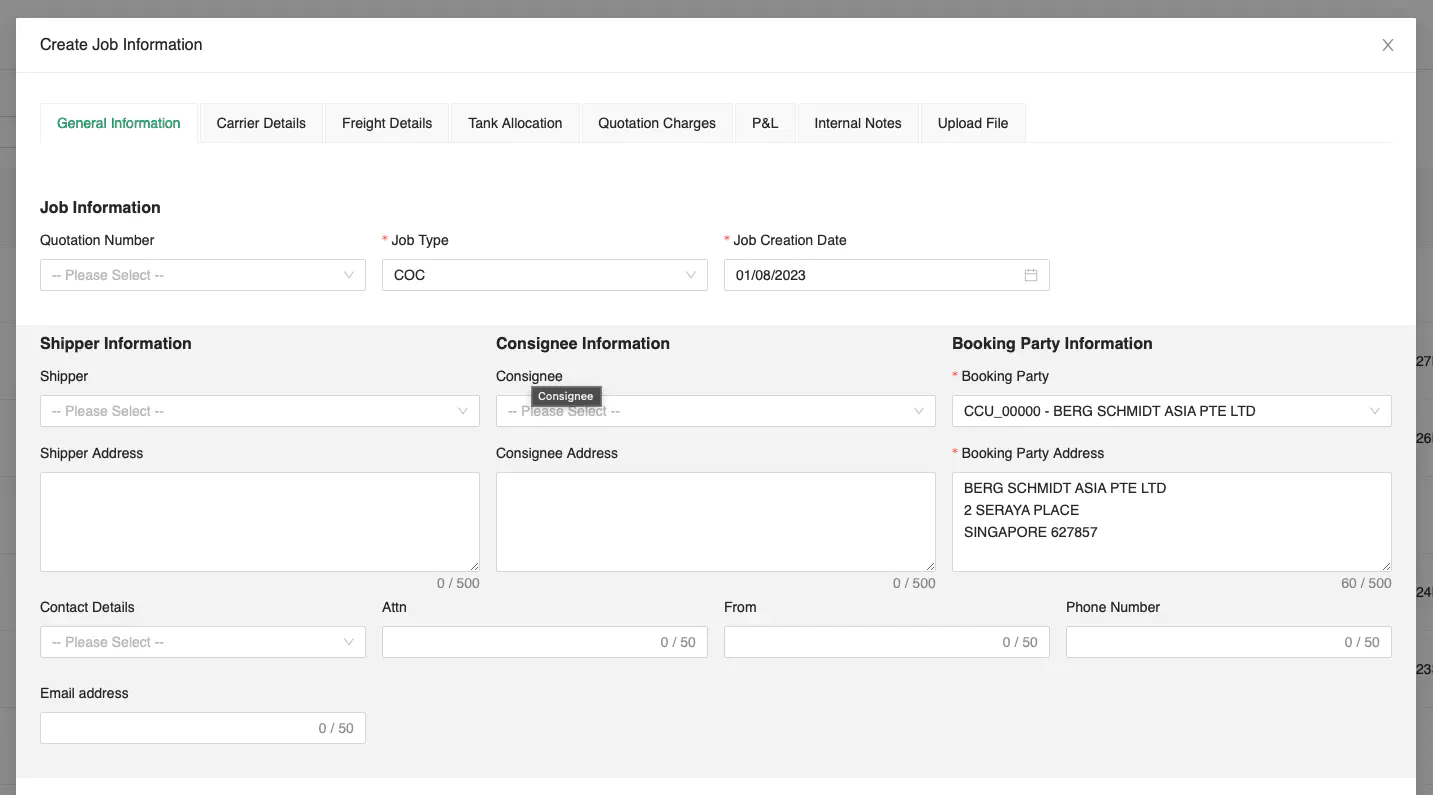
Key in the information carefully. Ensure that all mandatory fields are entered.
Click [Save] to create the new Job.
Business Logic:
Expiry Datemust be same or later thanEffective Date
Port of LoadingandPort of Dischargemust not be the sameAt least one record of
Costpair is required in Port of Loading tabIf multiple Ports of Discharge are provided, there must not be any duplicates in
Port of Discharge
Draft Job
Click [Save as Draft] at any time to save the information as a draft job. You may retrieve this draft copy at anytime by clicking on the same + when adding the job.
Only one draft copy per user account can be saved.
Edit Job
Click [Actions] → Edit to edit the selected record.
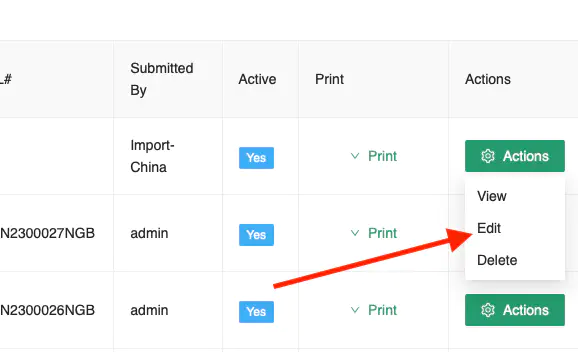
Once you have amended the entry, click [Update] to save the record.
The same Business Logic from Add Job applies.
Delete Job
Click [Actions] → Delete to delete the selected record.
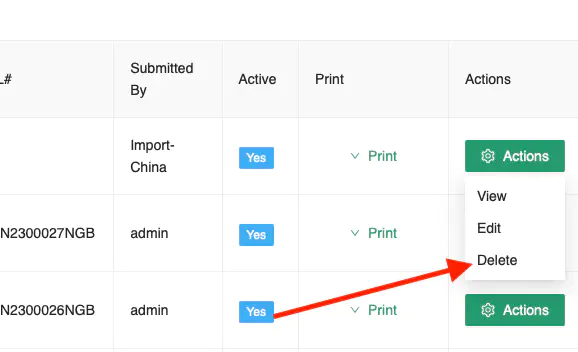
A confirmation prompt will appear. Click [Ok] to proceed with the deletion.
Business Logic: The Job must not be in use with any active transactions in the system. i.e. This Job must not have any active containers or release orders.